Timer Configuration
To Add a Timer
- On the Timer Config view, click Configure Timers to open the Timer Configurations dialog box.
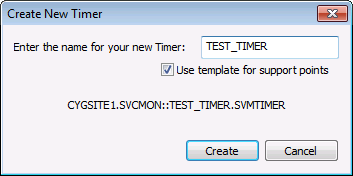
- Click Create New Timer to open the Create New Timer dialog box.
- Type a name for the timer. Valid characters are A-Z, 0-9, dash (-) and underscore (_).The name cannot contain spaces.
- To apply the timer point templates (for timer state, cycle, and errors), click the Use template for support points option.
- Click Create.
- Click OK.

To Set a Timer Refresh Rate
- On the Timer Config view, click Configure Timers to open the Timer Configurations dialog box.
- Select the timer in the Timer to configure drop-down menu.
- Enter the refresh rate in the Seconds text box.
- Click Set Refresh Rate to apply the value.
To Delete a Timer
Before deleting a timer it is recommended that you first remove any SVCMON points assigned to the timer. If you do not remove the points, they will be listed under No Assigned Timer.
- On the Timer Config view, click Configure Timers to open the Timer Configurations dialog box.
- Select the timer in the Timer to configure drop-down menu.
- Click Delete Selected Timer. The utility will display a prompt asking if you want to delete the timer values from the VHS. These are the history values associated with the timer tags.
- Click OK.
Disabling a Timer
A timer can be disabled to stop updates.
To Disable a Timer
- On the Timer Config view, click Configure Timers to open the Timer Configurations dialog box.
- Select the timer in the Timer to configure drop-down menu.
- Click to clear the Enabled option.
- Click OK.

